A workflow (the editor calls it a pipeline) turns a research habit into something that runs on its own. For example: research each competitor weekly, continue only if something material changed, wait for a partner's approval, then export a PDF to a webhook.
Open the editor
- Click Workflows in the top bar and open Pipelines. The list shows each pipeline's steps, schedule, last run and credit ceiling, plus any approvals waiting for you.
- Click New pipeline, or open an existing one.
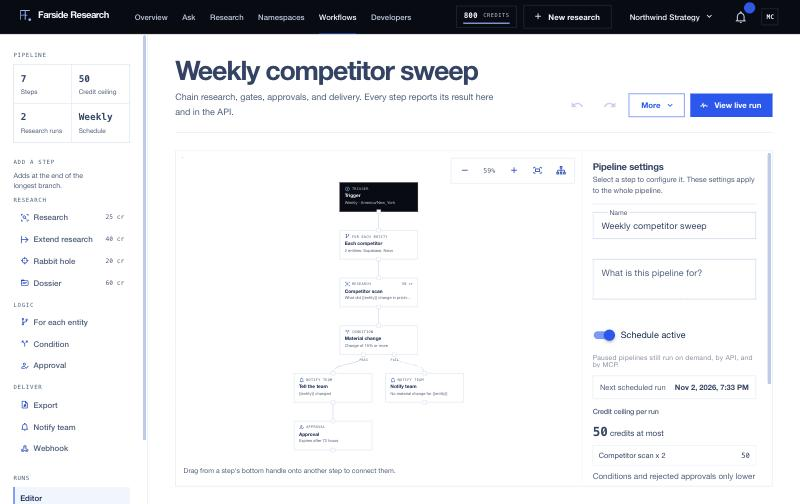
- Under Add a step on the left, pick a step type. Each paid type shows its price, and a new step is added at the end of the longest branch. Drag from a step's bottom handle onto another step to connect them.
- Select a step on the canvas to configure it in the panel on the right. With nothing selected, that panel shows Pipeline settings: name, purpose, schedule and the credit ceiling with its breakdown.
- Click Save pipeline. The server validates the graph and recalculates the credit ceiling.
- Click Run now to start it once, or turn on a schedule.
Steps
Start and logic
- Trigger: how the pipeline starts. Manual (on demand, or from the API and MCP) or on a schedule.
- For each entity: runs every step below it once per item you list, such as companies, products or markets. Up to 25 items. Use
{{entity}}in a research question to insert the current item. - Condition: continues only on a material change from the previous run, or when the report is decision ready. It has pass and fail branches, and you choose what the first run does, since there's nothing to compare against yet.
- Approval: pauses until a teammate approves or rejects.
Research
- Research: runs a saved brief or a question you type, at Standard or Deep depth. It compares to the last run automatically.
- Extend research: adds one to three rounds to the report, optionally with an extra angle.
- Rabbit hole: investigates one direction in depth and attaches it to the report.
- Dossier: turns the report into a multi-document dossier (3 to 12 documents).
Deliver
- Export: produces a PDF, Markdown, JSON, sources CSV or dossier file.
- Notify team: sends an in-app notification to everyone in the workspace.
- Webhook: posts a signed payload with the report to one of your registered endpoints.
A pipeline can have up to 40 steps, and one run can start at most 50 research runs.
Schedules
Set the trigger to Schedule and choose daily, weekly or monthly, an IANA timezone such as America/New_York, and an optional first run time. The settings panel shows the Next scheduled run. Turning off Schedule active pauses the schedule without deleting anything, and a paused pipeline still runs on demand, by API and by MCP.
Only one run of a pipeline happens at a time. If a scheduled time arrives while the previous run is still going, that occurrence is skipped rather than queued.
Approval steps
When a run reaches an approval step, it stops and workspace members get an in-app notification, using the step's instructions as the text if you set any. The pipeline list shows the request under Waiting for approval with its expiry time. Click Review, then select the highlighted step in the run view to approve or reject it.
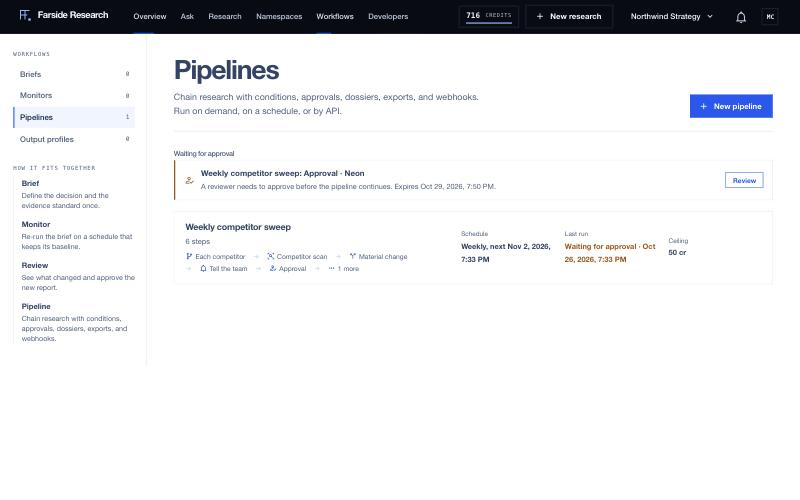
Approvals expire. The default window is 72 hours, and you can set anything from 1 hour to 30 days. An approval nobody answers in time counts as rejected. A rejected approval stops that branch: the steps after it don't run.
The credit ceiling
The editor shows a Credit ceiling at the top of the left sidebar and again, with a per-step breakdown, under Credit ceiling per run in the pipeline settings. It's the most one run can cost, computed from the steps: each paid step's price times the number of entities it runs for, assuming every branch is taken. You don't set it; it changes when the steps change.
At current prices, research costs 25 credits (Standard) or 120 (Deep), an extension 40, a rabbit hole 20 and a dossier 60. All other steps are free. The pipeline in the screenshot researches two competitors at Standard depth, so its ceiling is 2 × 25 = 50 credits. One that researches 5 competitors and builds a dossier for each has a ceiling of 5 × (25 + 60) = 425 credits.
Conditions and rejected approvals only lower the real cost. Credits aren't taken up front: each paid step reserves its own credits when it starts. If the balance can't cover a step at that moment, that step fails with an insufficient-credits error.
Running from the API or MCP
From REST, start a run with an idempotency key so a retry never starts a second one:
curl -X POST https://api.farsideresearch.com/v1/workflows/WORKFLOW_ID/executions \
  -H "Authorization: Bearer $FARSIDE_API_KEY" \
  -H "Idempotency-Key: $(uuidgen)"
Then read it with GET /v1/workflow-executions/EXECUTION_ID, list pending approvals with GET /v1/workflow-approvals, and decide one with POST /v1/workflow-executions/EXECUTION_ID/steps/STEP_ID/decision and a body of {"decision": "approve"} or {"decision": "reject", "note": "..."}.
Over MCP, four tools cover the same ground: list_workflows (with schedule, credit ceiling and last run), run_workflow, get_workflow_execution and decide_workflow_approval. Starting a run needs a key with the run scope.
If you'd rather get pushed updates than poll, a webhook endpoint can subscribe to workflow.step, workflow.completed, workflow.failed and workflow.approval_requested.